 Glow
Glow
Your Hue lamps,
in your Mac's menu bar.
One click switches a lamp, a drag dims it and a right-click gives you colors. You don't need Siri, Alexa or your phone.
Free & open source · macOS 14 or later · Needs a Philips Hue Bridge on the same network
Everything you reach for, nothing you don't
Click. Drag. Done.
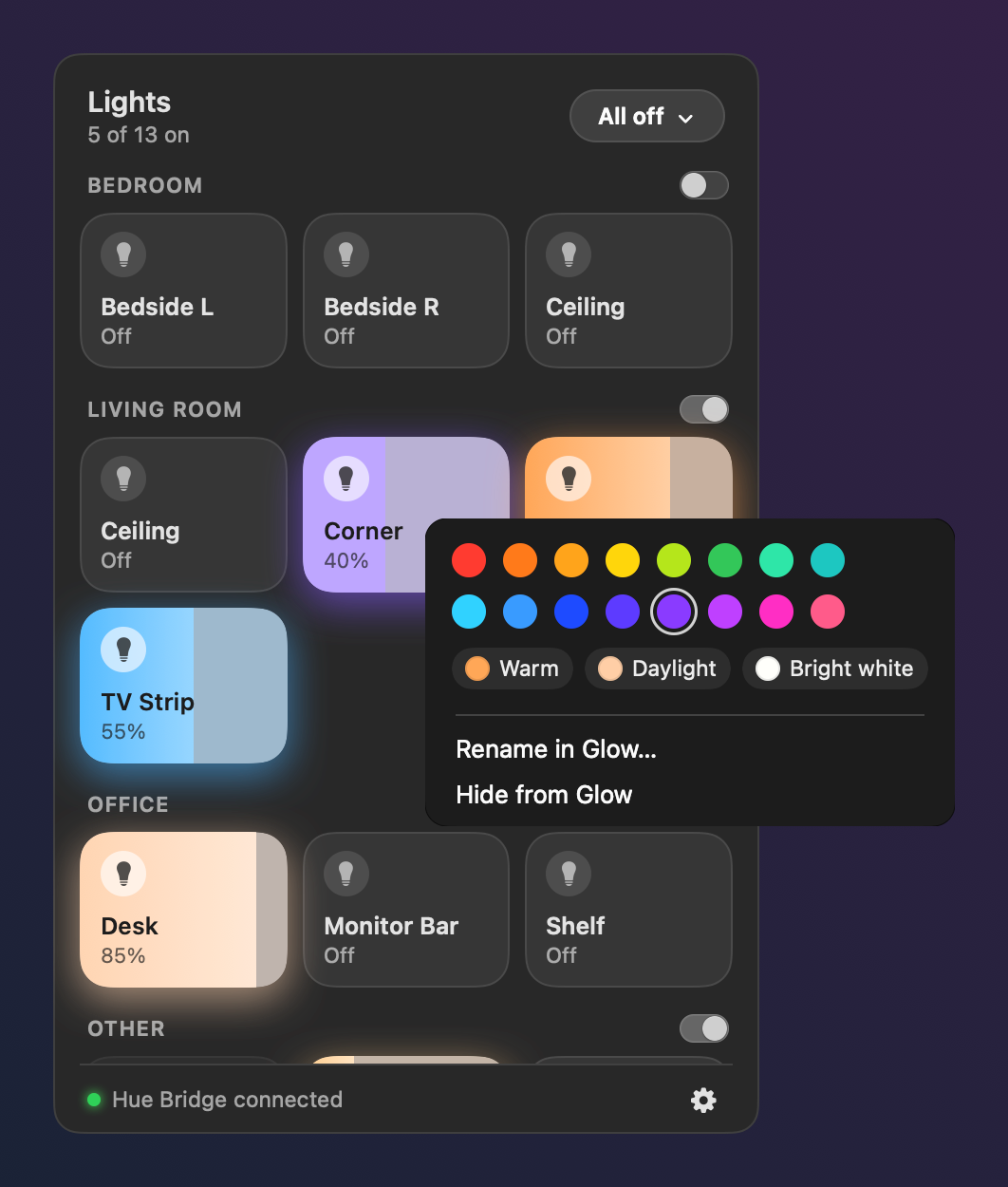
Every lamp is a tile glowing in its real color, grouped by your Hue rooms. Click to toggle, drag sideways to set the brightness, flip a room's switch to do the whole room at once.

Colors without the clutter
Right-click a lamp for 16 colors and three whites. Glow only offers what that lamp can actually do. The menu stays open, so you can try a few.
All off, now or later
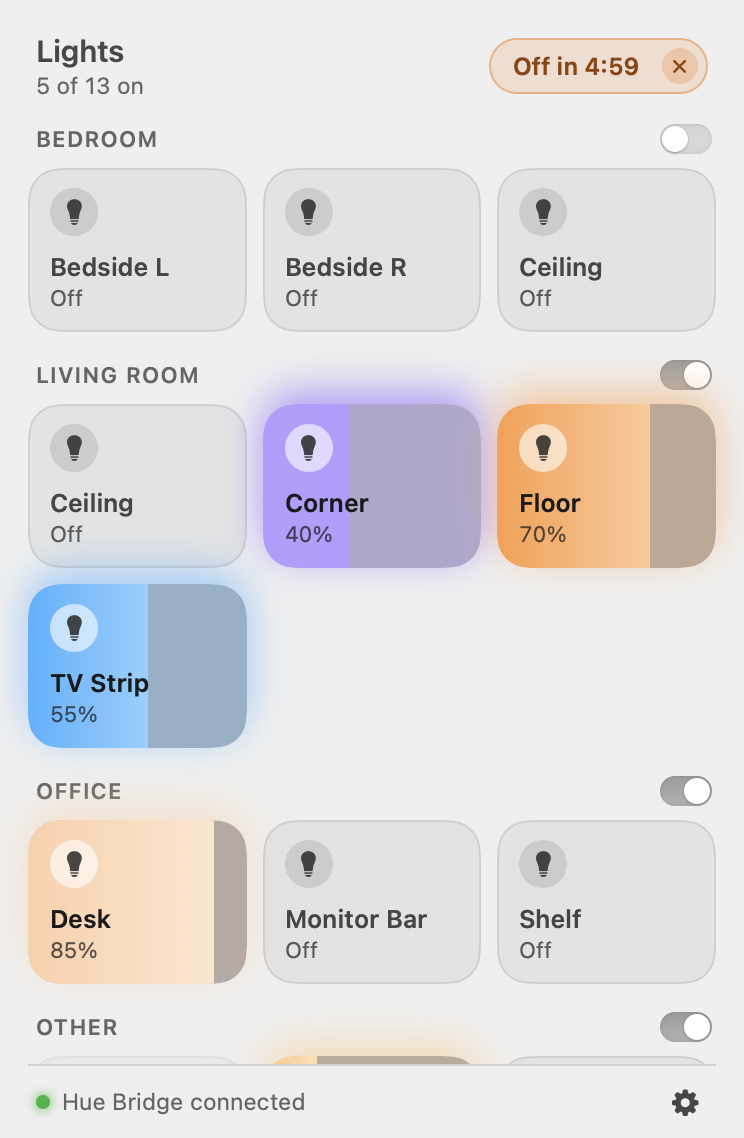
Heading out or going to bed? Turn everything off now, or in 5, 15, 30 or 60 minutes. The timer runs on your Hue Bridge, so it works even when your Mac is asleep.
Your lamps, your order
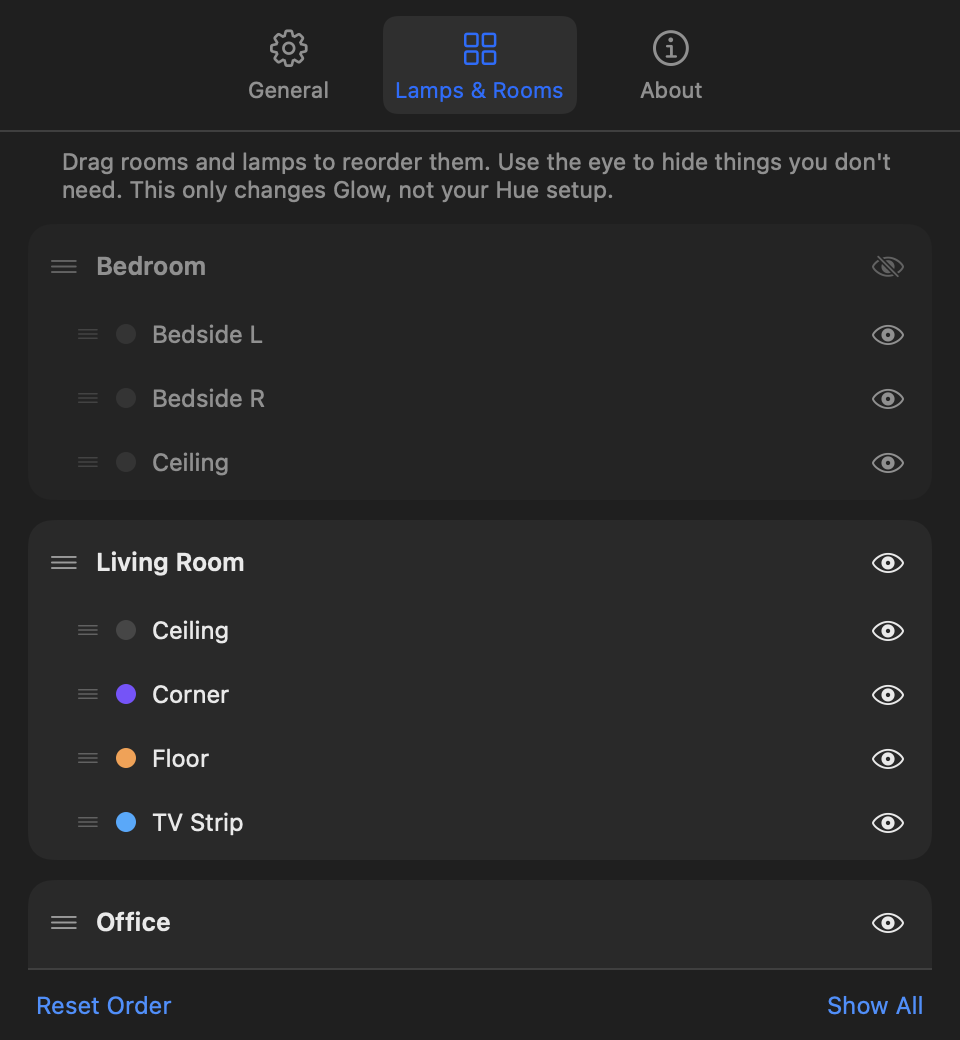
Open Settings and go to Lamps & Rooms, then drag rooms and lamps into the order you think in and hide the ones you never touch. It only changes Glow, so your Hue setup stays exactly as it is.
🔒 Private by design
Glow controls your lamps through your Hue Bridge on your home network, so there's no account to create and no analytics. Other than that, it only goes online to find your bridge and to check for a new version (you can turn that off in Settings).
🛡 Verified bridge
Glow checks that your bridge is a genuine Philips Hue Bridge and then pins its certificate. After that, your key only goes to that bridge, on your home network.
⚡️ Live
If someone changes a lamp from the Hue app, a wall switch or a voice assistant, Glow shows it right away.
🌗 Feels native
It follows dark and light mode, works with the keyboard and VoiceOver, and respects Reduce Motion. It runs natively on both Apple Silicon and Intel Macs.
Set up in about 3 minutes
- Download the DMG, open it, and drag Glow onto Applications.
- Open Glow. macOS says it can't be opened, because Glow isn't from an Apple-registered developer. Click Done.
- Go to System Settings → Privacy & Security, click Open Anyway next to Glow, and confirm. You only do this once.
- Click the bulb in your menu bar and Allow Glow to find devices on your local network.
- When Glow asks, press the round button on your Hue Bridge. You have 3 minutes, so take your time.
Use Home Assistant? You can paste its Hue key instead of pressing the button.
Questions
Why does macOS say Glow "can't be opened"?
Glow is a free side project, so it isn't signed through Apple's paid developer program. macOS asks you to confirm once via System Settings → Privacy & Security → Open Anyway. The source code is public on GitHub, and you can build it yourself.
Why does it ask about my local network?
That's how Glow reaches your Hue Bridge. Other than that, it asks Philips' bridge-finder where your bridge is (during setup, or when it can't find it any more), and it asks GitHub once a day for the latest version. You can turn the daily check off in Settings.
Do I have to press the button on the bridge?
Once, during setup. That's how the bridge knows you're allowed to control it. If Home Assistant already controls your lights, you can paste its key instead.
Does it work without a Hue Bridge?
No. Glow needs a Philips Hue Bridge on the same network. Bluetooth-only Hue bulbs aren't supported.
Does it work away from home?
No. Glow talks to your Hue Bridge directly, so your Mac has to be on the same network as the bridge. If your Mac joins another Wi-Fi, like a guest network, Glow can't reach your lamps until you're back on your home network.
Is it safe?
Glow stores the bridge key in a private file only you can read, verifies the bridge is genuine before talking to it, and never follows redirects. Also, it never sends your lamps, your usage or any account data anywhere. It went through a security review and attack tests, and the code is open for anyone to check.
What's next?
A Nest thermostat card showing current and target temperature. Follow the project on GitHub.